

AI providers
Buddy thinks with a large AI model from one of the major providers, through your organization’s own account: its use is billed to you and the account’s limits are yours. Connect one before anything else. Until you do, the chat on every site says Buddy needs an AI provider and offers a Connect an AI provider button that brings you here.
Connecting a provider
Section titled “Connecting a provider”- Open AI providers in the sidebar and press Add provider.
- Under What are you connecting?, choose one:
- ChatGPT subscription (Plus, Pro or Business)
- An API key from OpenAI, Anthropic, Google or xAI
- Paste the credential and save. Site Buddy checks it straight away.
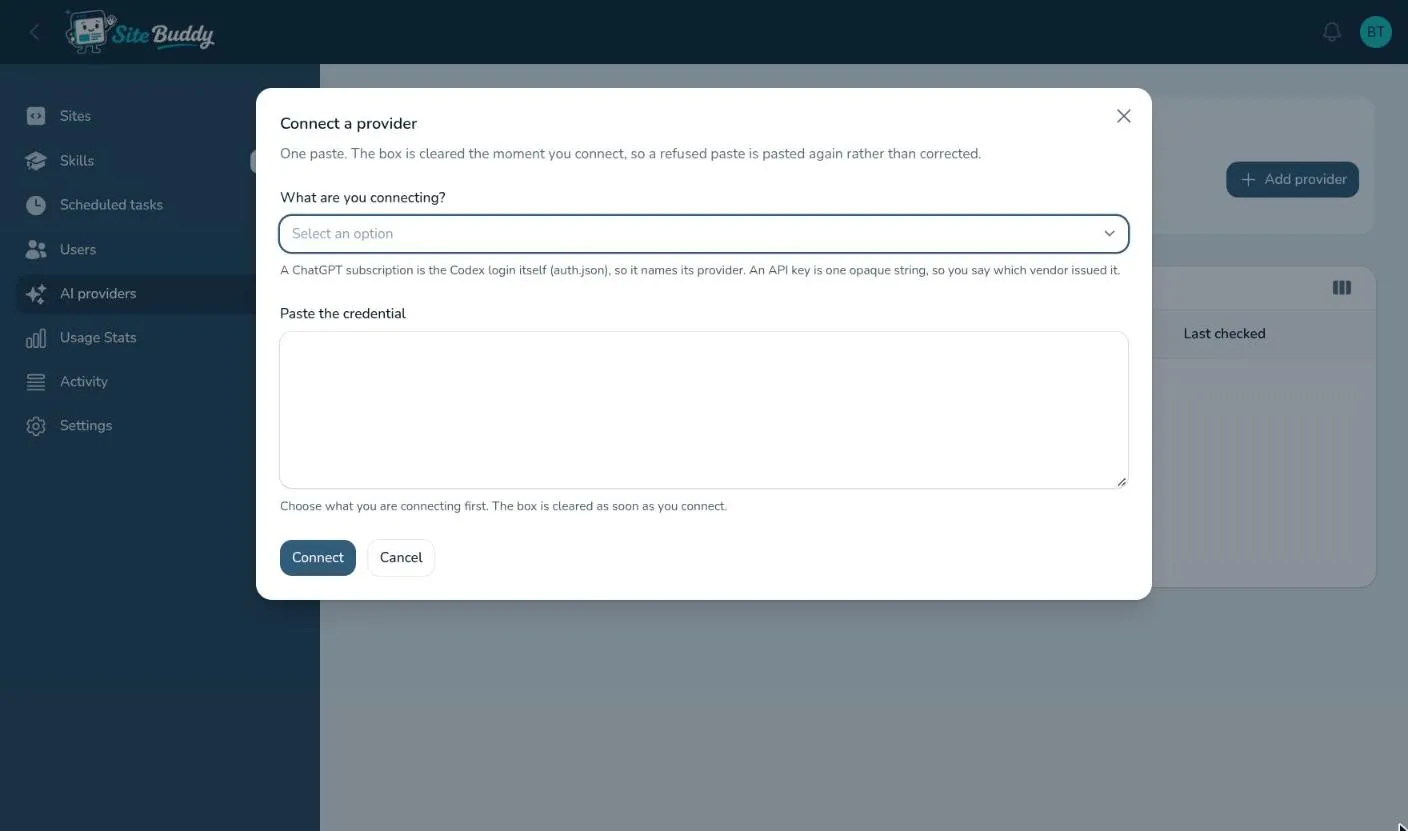
A ChatGPT subscription
Section titled “A ChatGPT subscription”A subscription connects with a sign-in file rather than a key:
- On any computer, install OpenAI’s Codex command-line tool and run
codex login. Sign in with the ChatGPT account you want Buddy to use. - Open the file it creates,
~/.codex/auth.json, copy everything in it, and paste it into Site Buddy.
Site Buddy keeps the sign-in fresh from then on.
An API key
Section titled “An API key”Create a key in the provider’s own dashboard and paste it in. Usage is billed by the provider, per use.
Keeping an eye on it
Section titled “Keeping an eye on it”The list shows each provider’s Status, when its sign-in expires, and when it was last renewed and checked. Check now tests it on the spot; Disconnect removes it.
If a credential stops working, owners are notified (see notifications).
Choosing the model
Section titled “Choosing the model”Which model Buddy uses by default is set in settings, under Buddy defaults. Anyone can pick a different model for a conversation from the Model picker in the chat.