

The site workspace
When you open a site you land in its workspace: the chat with Buddy in the middle, and panes around it for everything else about the site. Panes can be rearranged, resized, collapsed and reopened; the workspace remembers how you left it, for each site.
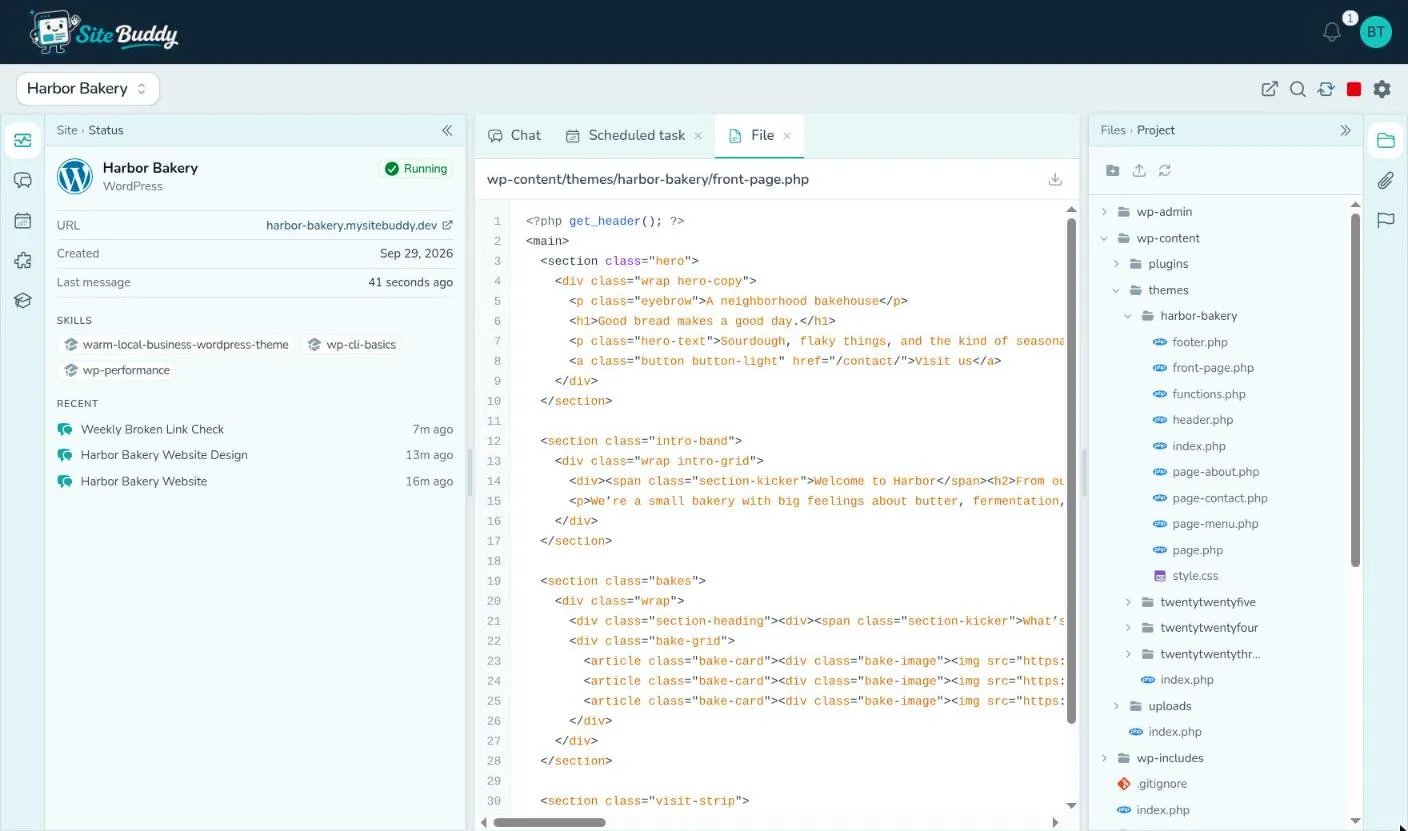
Along the top
Section titled “Along the top”- The site’s name, in the site’s color. Click it to switch to another site. The message box carries the same color and names the site, so you can see at a glance which site you are writing to.
- Open site opens the site’s preview address.
- Search chats searches every conversation on this site and jumps to the message you pick.
- Start environment, Stop environment or Restart environment, depending on whether the site is running.
- Site settings (the gear): name, access, instructions, checkpoint schedule and more. See managing your sites.
The panes
Section titled “The panes”| Pane | Where | What it is for |
|---|---|---|
| Chat | Centre | Talking to Buddy. See chat and modes. |
| Status | Left | The site at a glance: its address, access, integrations, skills, who works on it, and recent conversations. Click an integration or skill to open it. |
| Conversations | Left | Every conversation on this site. New conversation starts one; click one to pick it up again. |
| Task board | Left | Jobs you hand Buddy, once or on a repeat. See task board. |
| Integrations | Left | Services connected to this site. See integrations. |
| Skills | Left | What Buddy knows how to do on this site, and a catalog of more. See skills. |
| Project | Right | The site itself: the files visitors are served and git tracks. See files and uploads. |
| Artifacts | Right | Everything that isn’t the site: files you give Buddy, and files Buddy makes for you. |
| Checkpoints | Right | Moments you can put the site back to. See checkpoints. |
Opening a file, a skill or a task shows it in the centre, beside the chat, so you can read it while you talk about it.
Several people at once
Section titled “Several people at once”Everyone the site is shared with sees the same conversations. The Status pane lists who has worked on the site; click someone to jump to their last message.
People with view-only access can read everything but can’t send messages; the message box says so.