
Checkpoints
A checkpoint is a moment you can put the site back to. It holds the site’s files and its database together (for a site that has one), so restoring one brings back the site exactly as it was: the pages, the settings, the orders, the users.
Taking one yourself
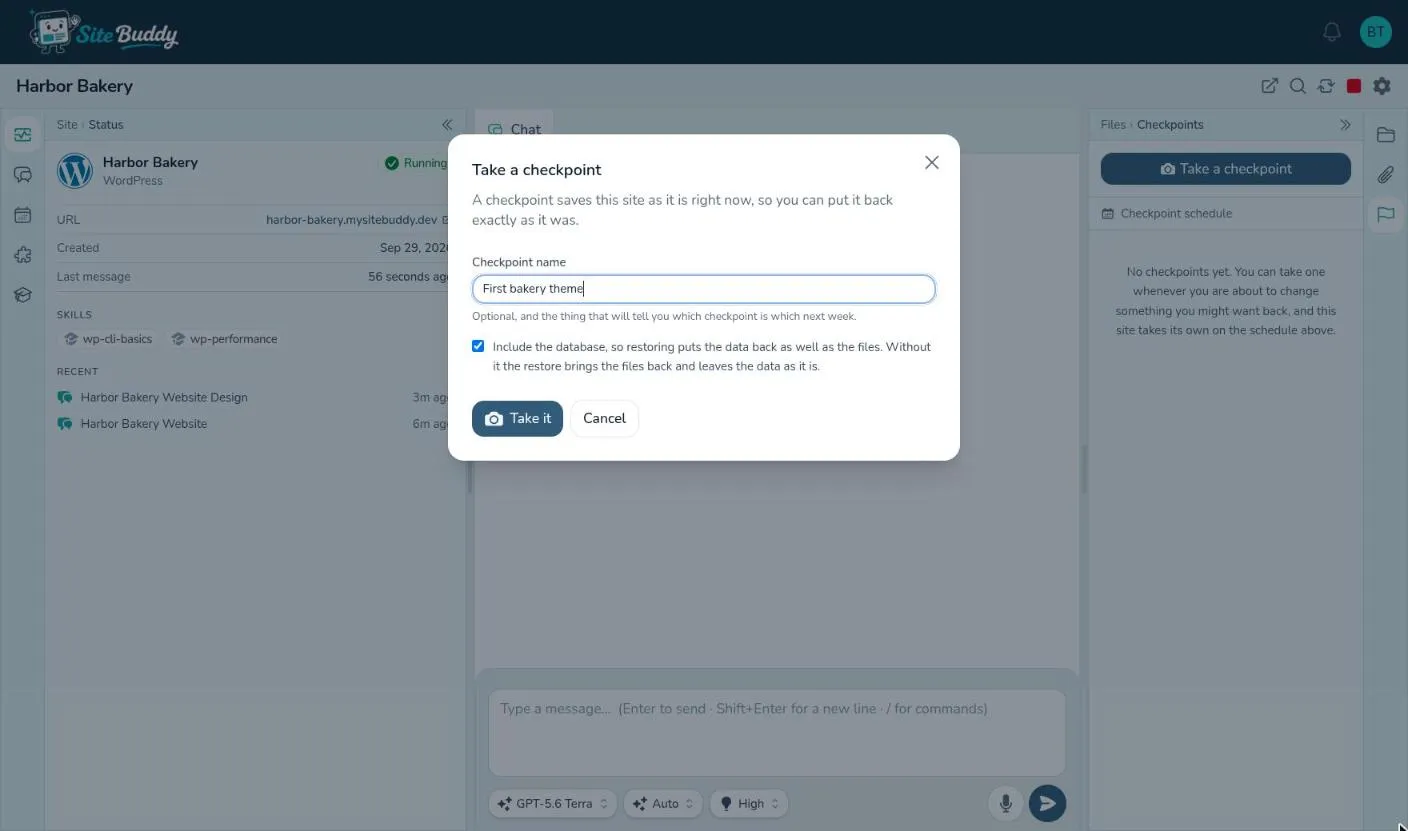
Section titled “Taking one yourself”Before a big change, press Take a checkpoint in the Checkpoints pane.
- Checkpoint name (optional): something that will tell you which one this is next week, like “Before the new homepage header”.
- Include the database: tick it so restoring puts the data back as well as the files. The files cost almost nothing to keep; the database is saved in full each time, and the box tells you how big it is.
You can also just ask Buddy: “Take a checkpoint before you start.”
On a schedule
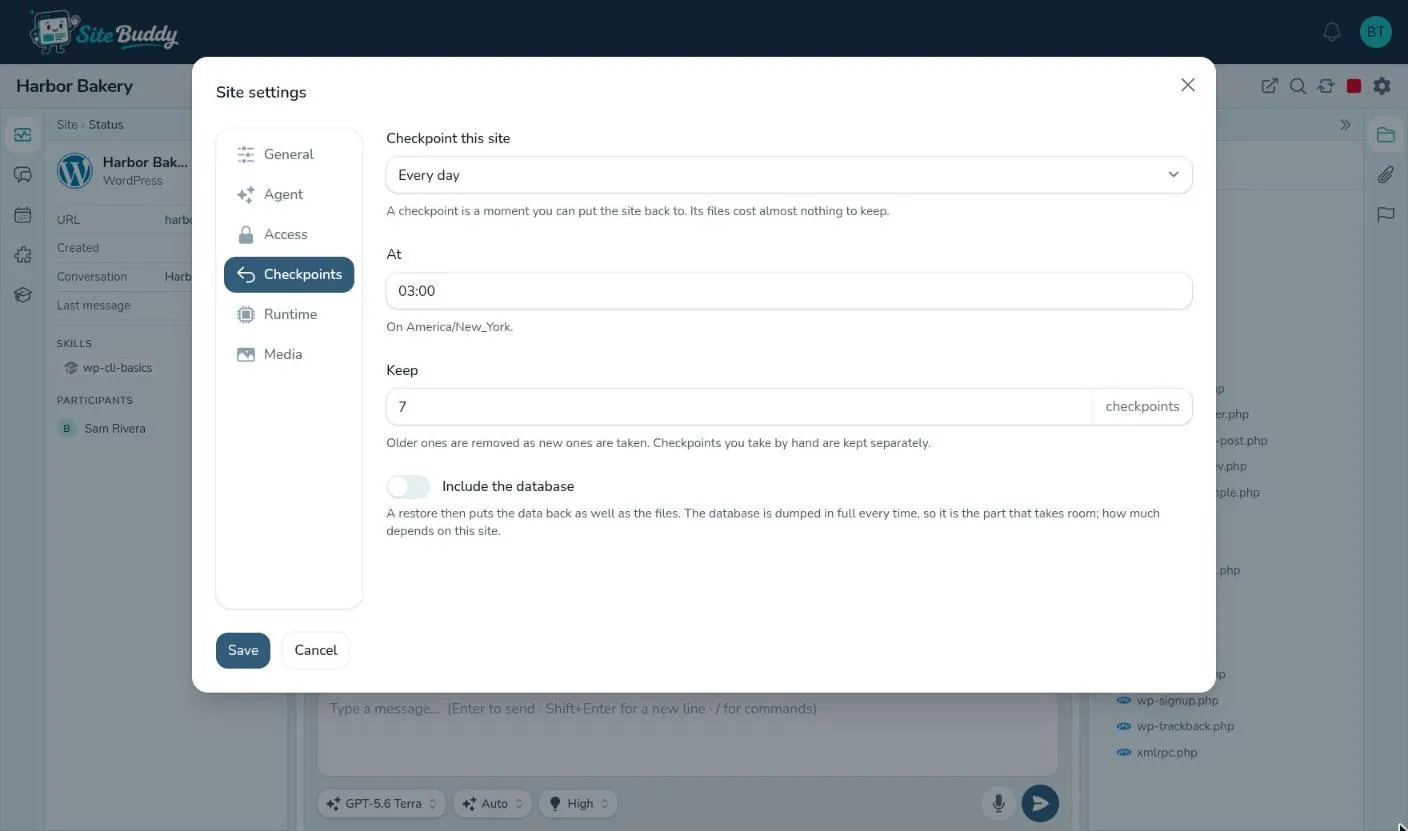
Section titled “On a schedule”Site Buddy can take checkpoints on its own. Set the schedule in Site settings, Checkpoints:
- Checkpoint this site: Never, Every day or Every week.
- On and At: the day (for weekly) and the time, in your organization’s timezone.
- Keep: how many scheduled checkpoints to keep (7 unless you change it, up to 90); the oldest go as new ones arrive. Checkpoints you take by hand are kept separately.
- Include the database: as above.
Tasks can also take a checkpoint before Buddy starts, for jobs like plugin updates that would be painful to undo by hand.
Restoring
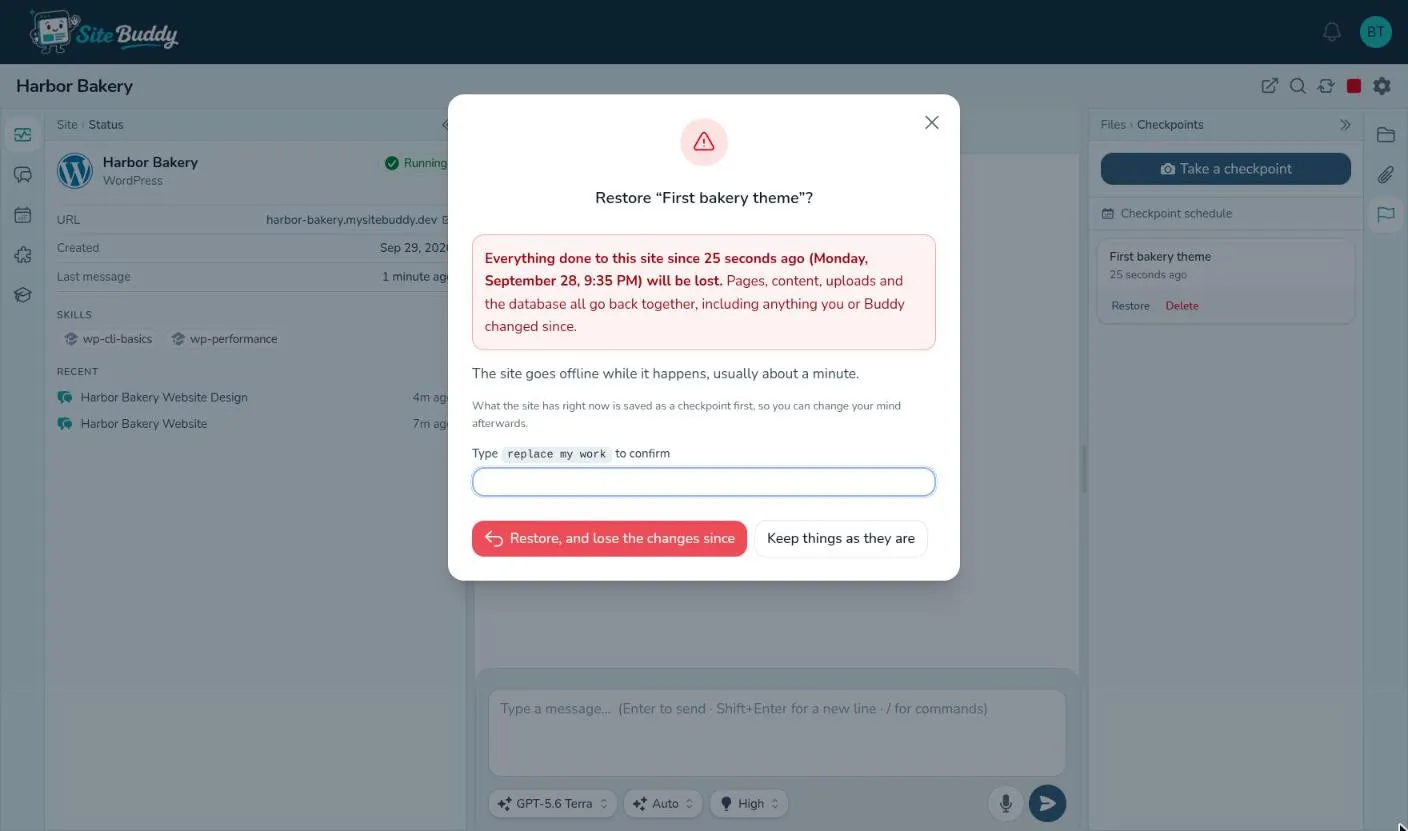
Section titled “Restoring”Choose the checkpoint in the Checkpoints pane and restore it. To make sure it is not a slip, you are asked to type
replace my work to confirm.
Restoring takes the site offline for about a minute while its files and database are put back. Anything that changed on the site after that checkpoint is lost, including content added through the site itself (orders, form entries, comments). To be safe, Site Buddy first saves the site as it is right now as a checkpoint of its own, so you can change your mind afterwards.
People who follow the site are notified when a restore finishes (or fails). See notifications.