

Task board
A task is a job you hand Buddy: “add the summer catering page”, “find out why bookings dropped”, “check the site for broken links every Monday”. A task can run once or on a repeat. Each go at it shows up as a card on the task board, and each card has its own conversation, so you can read exactly what Buddy did and pick it up from there.
There’s a task board for every site (Task board in the site’s menu) and one for all your sites together (Task board in the main menu, where you can narrow it to one site).
The board
Section titled “The board”Cards move through five columns:
| Column | What it means |
|---|---|
| To do | Written, not started yet. Press Start when you’re ready, or it starts on its own if you gave it a date. |
| Working | Buddy is on it. He works on one task per site at a time, so a second one waits its turn (“Queued”). |
| Needs you | Buddy has a question, couldn’t finish, or ran out of time. Open the card to answer him or see what happened. |
| Review | Buddy says it’s done and the task asked to check with you. Accept it, or Send back with a note on what still needs doing. |
| Done | Accepted, or finished on its own. The board shows the newest few; See all in the list opens the rest. Clear takes them off the board; they stay in the List. |
The number beside Task board in the menu is how many cards are waiting on you (Needs you and Review).
Adding a task
Section titled “Adding a task”Press New task:
| Field | What it’s for |
|---|---|
| What needs doing? | A short title, as it will show on the card. |
| Details for Buddy | Anything he should know: where the content is, what to leave alone. Write it as you would in the chat. |
| How will we know it is done? | Optional, and worth it: Buddy checks his work against this before he says he’s finished. |
| What may Buddy do? | Do (the default): Buddy can change things to get it done: edit the site, update plugins, write to your connected services (post, publish, change settings), without stopping to ask. Write the details as carefully as you would brief someone you were leaving alone with the site. Report only: Buddy looks and writes you a report, and doesn’t change the site or anything connected to it. He can save the report and its data in Your files. |
| When should Buddy do it? | Now, Later (it waits in To do until you press Start), On a date (once, at the time you pick), or Repeats (every day, week or month at a time you pick, or a custom schedule). |
| Check with me when it’s done | On: the card waits in Review until you accept it. Off: it goes straight to Done, and Buddy still stops and asks if something is wrong. On by default for one-off tasks, off for repeating ones. |
Under More options:
- Model and Effort: leave on the defaults unless the job needs something special.
- Time limit: if Buddy runs out of time, he stops and the card waits for you in Needs you.
- Tell the people who follow this site when it needs them or is done.
- Save a checkpoint before Buddy starts (for Do tasks), so it can be undone. Worth it for jobs that change the site (plugin updates, code edits); not needed for reports. Optionally include the database in it.
- Leave the site running afterwards, if Buddy had to start it.
Asking Buddy to add one
Section titled “Asking Buddy to add one”You can also ask in the chat, the way you would ask a person: “make a task to add the catering page”, “on December 1st, put up the Christmas banner”. Buddy adds it to the board and shows a card in the chat with a link to it. A task like that waits in To do until you press Start. If you gave a date, Buddy proposes it with a card instead: press Schedule it and it starts on that date.
Buddy may also suggest a task when he notices something worth doing, such as a fix his report turned up. It goes into To do marked Buddy suggested, and he never starts it himself: press Start if you want it, or open it and Delete it if you don’t.
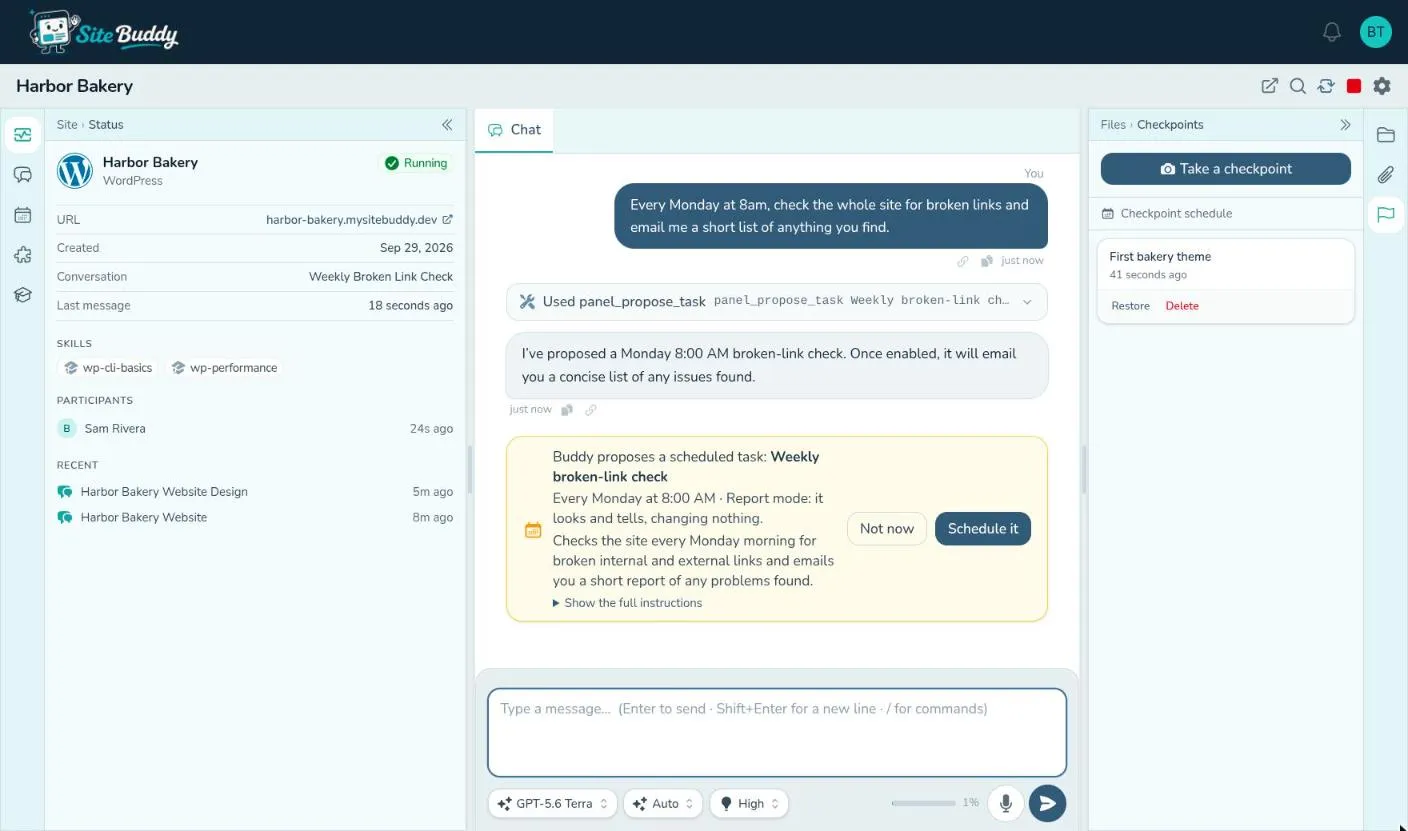
For something that should happen on a schedule (“every Monday morning, check the site for broken links and email me what you find”), Buddy proposes a repeating task with a card in the chat, saying what it will do and when. Press Schedule it to accept, or Not now. Nothing repeats until you say yes. Proposals waiting for an answer also show in To do on the board.
A card’s page
Section titled “A card’s page”Open a card and Buddy’s answer comes first: his question, his report, or why he couldn’t finish, with the box to reply right under it. Below it is the task as written. Last is the work log, the conversation Buddy had while doing it, folded away; open it to see how he got there, step by step.
- Needs you: Buddy’s question or what went wrong is at the top. Type your answer and press Send; Buddy carries on in the same conversation. Close ends it without an answer.
- Review: Buddy’s report says what he did and how to check it. Accept, or type what still needs doing and press Send back.
- Done: type what else Buddy should do and press Reopen. The card goes back to Working and Buddy carries on with everything he did on this run, then reports back again.
- To do: Start, Edit or Delete it.
- Working: Stop brings a one-off task back to To do; Start carries on from where Buddy stopped. Stopping a repeating task’s run ends just that run.
Answering, sending back and reopening all continue the same conversation, and none of them changes the task’s instructions. On a repeating task they change that one run only: the next run starts from the task as written. To change every run, edit the repeating task.
Repeating tasks
Section titled “Repeating tasks”The Repeating tab lists the tasks that run on a schedule, with when each runs next and how the last run went.
- Run now runs it straight away, without waiting for the schedule.
- Pause stops it running until you resume it.
- Open one to see its runs, Edit it or Delete it.
The Repeating tab on the main menu’s task board lists the repeating tasks on every site you can open.
The List tab shows every task Buddy has worked on, one row for each go at it, newest first, with the start of what he reported. The board shows what’s happening now; the List has everything. Open a row to see that run’s page.
Search by task name or by what Buddy reported, and filter by:
- Status: To do, Working, Needs you, Review, Done, or Could not.
- Once or repeating.
- Site (on the main menu’s task board), and Task.
- From: you, a chat, or Buddy’s suggestion.
- When: a date range.
The List on the main menu’s task board covers every site you can open.