

Settings and notifications
Organization settings
Section titled “Organization settings”Settings in the sidebar holds your organization’s details and Buddy’s defaults. Owners and admins can see it; only owners can change it.
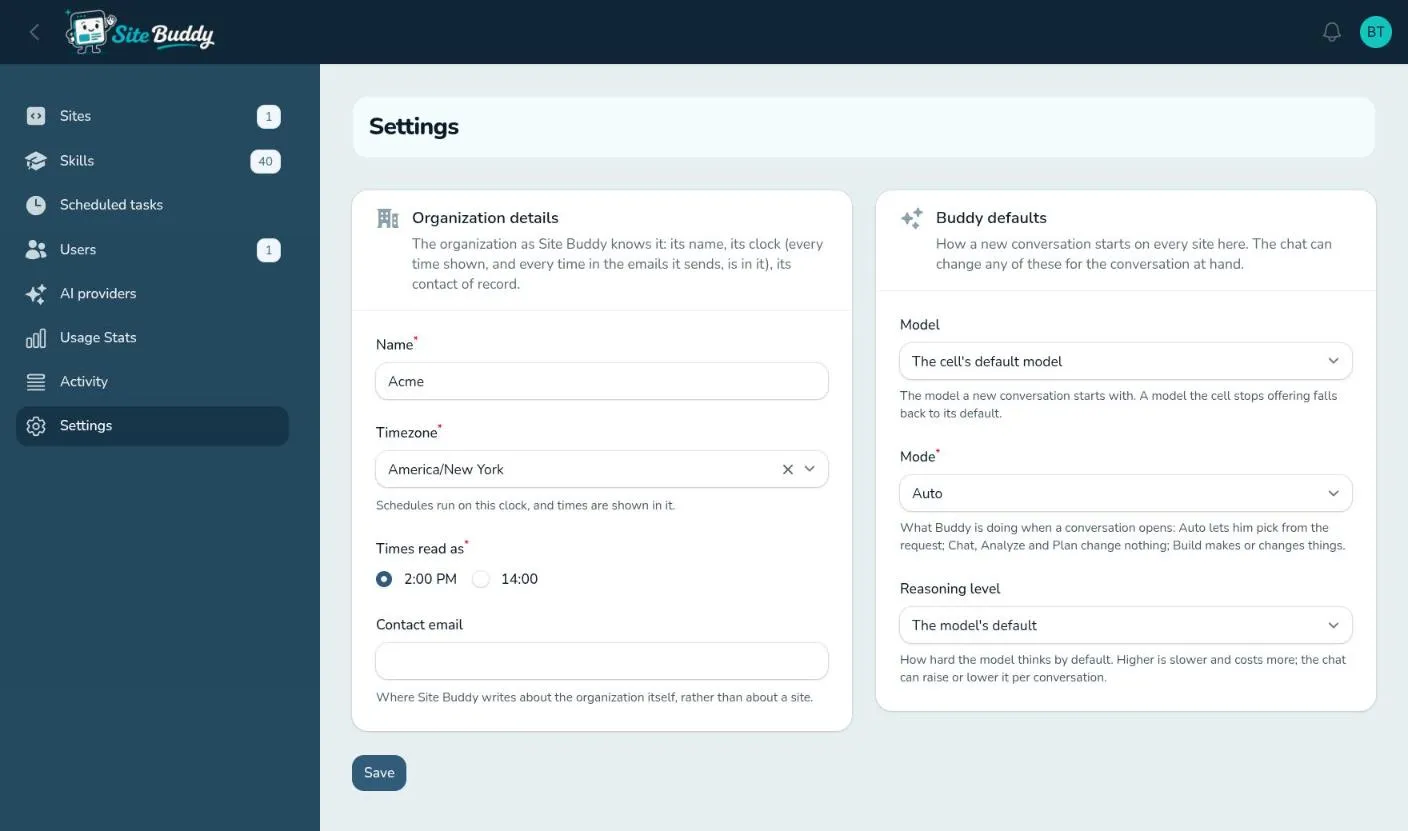
Organization details
Section titled “Organization details”- Name and Contact email.
- Timezone: used for checkpoint and scheduled task times.
- Times read as: 2:00 PM or 14:00.
Buddy defaults
Section titled “Buddy defaults”What a new conversation starts with, on every site:
- Model: the AI model Buddy uses.
- Mode: Auto, Chat, Analyze, Plan or Build. See chat and modes.
- Reasoning level: how hard Buddy thinks by default.
Anyone can change these for a single conversation from the pickers in the chat.
Notifications
Section titled “Notifications”Site Buddy tells you when something happens on a site you follow:
- A site stopped running.
- A checkpoint was restored, or a restore failed.
- A scheduled task’s run finished.
- Your organization’s AI provider credential stopped working (owners and admins).
Notifications appear under the bell at the top of the page, and by email. You can also have them sent to Telegram.
Choosing what you hear about
Section titled “Choosing what you hear about”Open your user menu (top right) and choose Notifications.
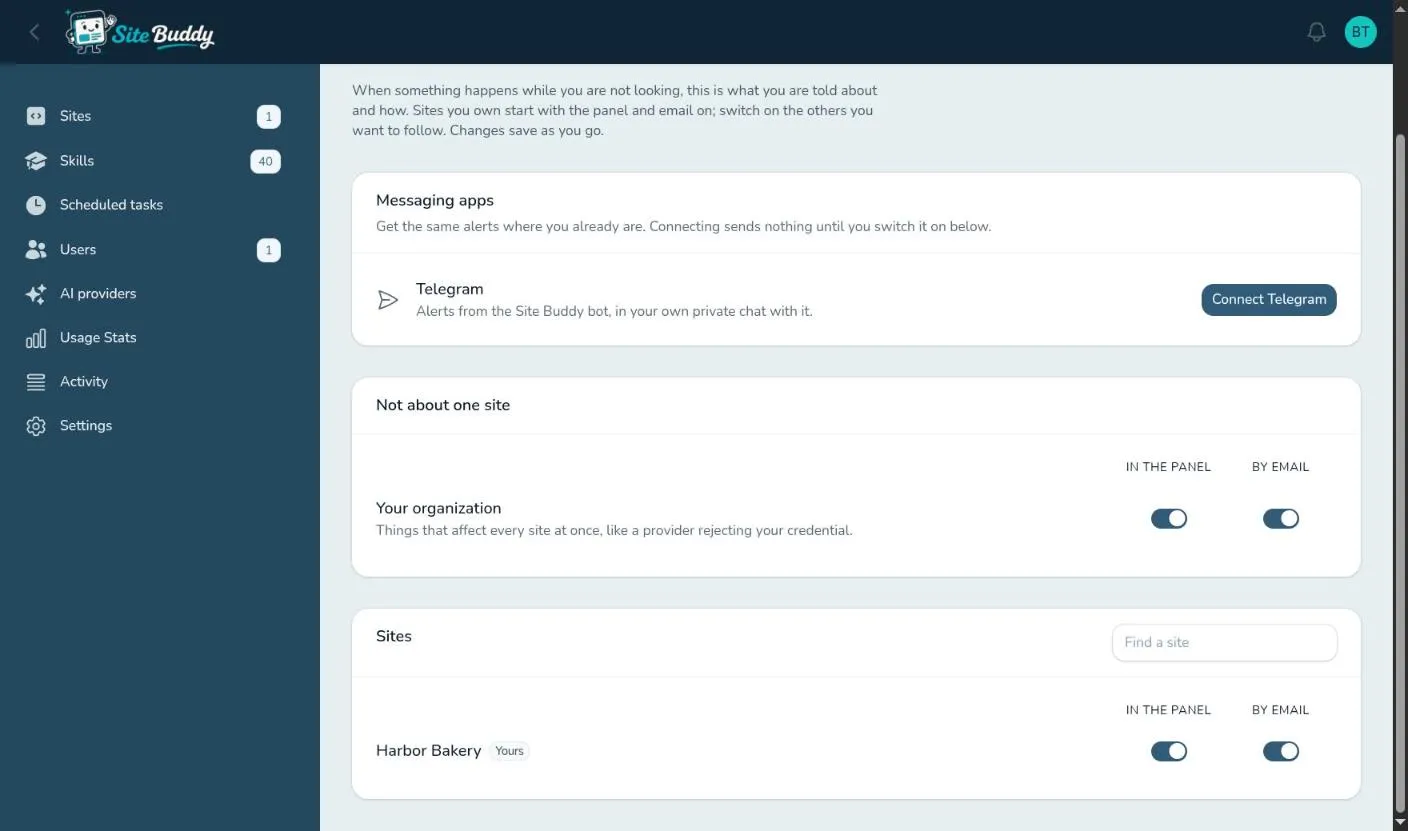
- Your organization (owners and admins): alerts that affect every site, like a provider rejecting your credential.
- Sites: for each site, switch In the panel and By email on or off. You follow the sites you own from the start; switch on the others you want to follow.
Changes save as you go.
Telegram
Section titled “Telegram”Under Messaging apps, press Connect Telegram to get the same alerts from the Site Buddy bot in your own private Telegram chat. Connecting sends nothing until you switch it on for the alerts you want.
Your profile
Section titled “Your profile”Your user menu also has your profile, where you change your name, email address and password.